A team workspace usually starts simple. There are a few documents, a couple of projects, and everyone knows where things live.
Then the team creates more.
Project plans sit next to meeting notes. Tasks appear in different places. Someone creates a new page because they can't find the old one. Naming becomes inconsistent. Eventually, finding information requires knowing who created it or remembering where someone decided to put it.
The problem is not always a lack of organization. Often, the workspace simply wasn't structured for the amount and variety of work it now contains.
A useful team workspace gives people predictable places for different kinds of work. It should make it easier to answer basic questions such as: Where should this go? Where would I look for it later? Who has access to it? Is this information still current?
Here are some practical ways to build that kind of structure.
Start with how your team actually works
Before reorganizing your workspace, look at the work your team already does.
Make a simple inventory of the information and activities that regularly appear in your workspace. That might include:
Project specifications
Meeting notes
Decisions
Policies and internal documentation
Tasks and issues
Roadmaps
Research
Client or campaign work
Reference material
The goal is not to create a category for every possible item. It is to identify the recurring types of work that need a reliable home.
Pay attention to where confusion happens today. Do people regularly ask where a document lives? Are there several versions of the same information? Are tasks buried inside pages that nobody checks? Are unrelated projects mixed together at the top level?
Those patterns are more useful than designing an ideal workspace from scratch.
Give different kinds of work different homes
One common source of clutter is treating every piece of information the same way.
A project specification and a task may belong to the same project, but they serve different purposes. The specification is something people read and reference. The task is something people track, assign, update, and eventually complete.
It helps to distinguish between a few broad types of work:
Written knowledge includes documents, notes, decisions, policies, and reference material.
Project context groups the information and ongoing work related to a particular initiative, team, client, or area of responsibility.
Structured work includes things such as tasks, issues, roadmaps, content calendars, or other items that benefit from properties such as status, owner, priority, or due date.
You do not need separate software for each category. What matters is that people can tell the difference between them inside the workspace.
Avoid a large, flat workspace
A flat structure works surprisingly well when there are only a few things in it.
At 20 pages, scanning a list may be enough. At 200 or 500, it becomes much harder to understand what belongs together.
Grouping related work gives people context before they start searching.
For example, instead of keeping product specifications, launch notes, issues, and research scattered across the workspace, they can live within the area for that product or initiative.
The goal is not to create a deep folder tree. Too many layers create a different navigation problem. A useful structure gives related work a clear home without making people click through five levels to reach it.
Make locations predictable
A workspace is easier to navigate when people can guess where something should be.
That predictability matters more than creating a perfect taxonomy.
If product specifications always live with the relevant product project, people learn where to look. If meeting notes sometimes live under a team, sometimes under a date, and sometimes inside a personal page, finding them depends on remembering how each individual organized their work.
Simple conventions can help:
Decide where recurring types of documentation live.
Use consistent names where they make scanning easier.
Keep related work together.
Avoid creating a new top-level area when an existing one already fits.
Make ownership and access clear for work that needs restrictions.
The system should reduce the number of organizational decisions each person has to make.
Separate navigation from search
Search is useful, but it should not be the only way to find something.
Someone who knows the exact name of a document can search for it. Someone joining a project for the first time may not know what to search for.
A clear workspace structure helps both cases. Search handles direct retrieval, while navigation helps people understand what exists and how information relates.
This is particularly useful for new team members. They can browse a project's context instead of needing a list of links or asking where each document lives.
Decide how much flexibility your team needs
There is a real tradeoff between flexibility and structure.
A highly flexible workspace lets a team create almost any system it wants. That works well when the team has clear conventions and is willing to maintain them.
The tradeoff is that the team also has to make more decisions. What should be a page? Where should a database live? How should projects be represented? Which properties should people use? When should something become a separate area?
A more structured workspace makes some of those decisions in advance. That can make organization more predictable, but it also means working within a clearer model.
Neither approach is automatically better.
A small team with an unusual workflow may value maximum flexibility. Another team may prefer having a few defined building blocks so people spend less time deciding how the workspace itself should work.
The useful question is not "How flexible is this tool?" It is "How much workspace structure does our team want to design and maintain ourselves?"
Keep the system simple enough to maintain
Organization tends to break down when the rules are harder to follow than the work itself.
If adding a document requires deciding between twelve categories, people will eventually stop categorizing things carefully.
A few lightweight practices are usually more sustainable:
Use recognizable names.
Keep the number of top-level destinations manageable.
Put related work together.
Remove or archive areas that are no longer useful.
Review the structure occasionally as the team changes.
Document the few conventions people genuinely need to know.
The workspace will never stay perfectly tidy. It does not need to.
The goal is for small amounts of disorder to be easy to correct without reorganizing the entire system.
How Notework approaches workspace structure
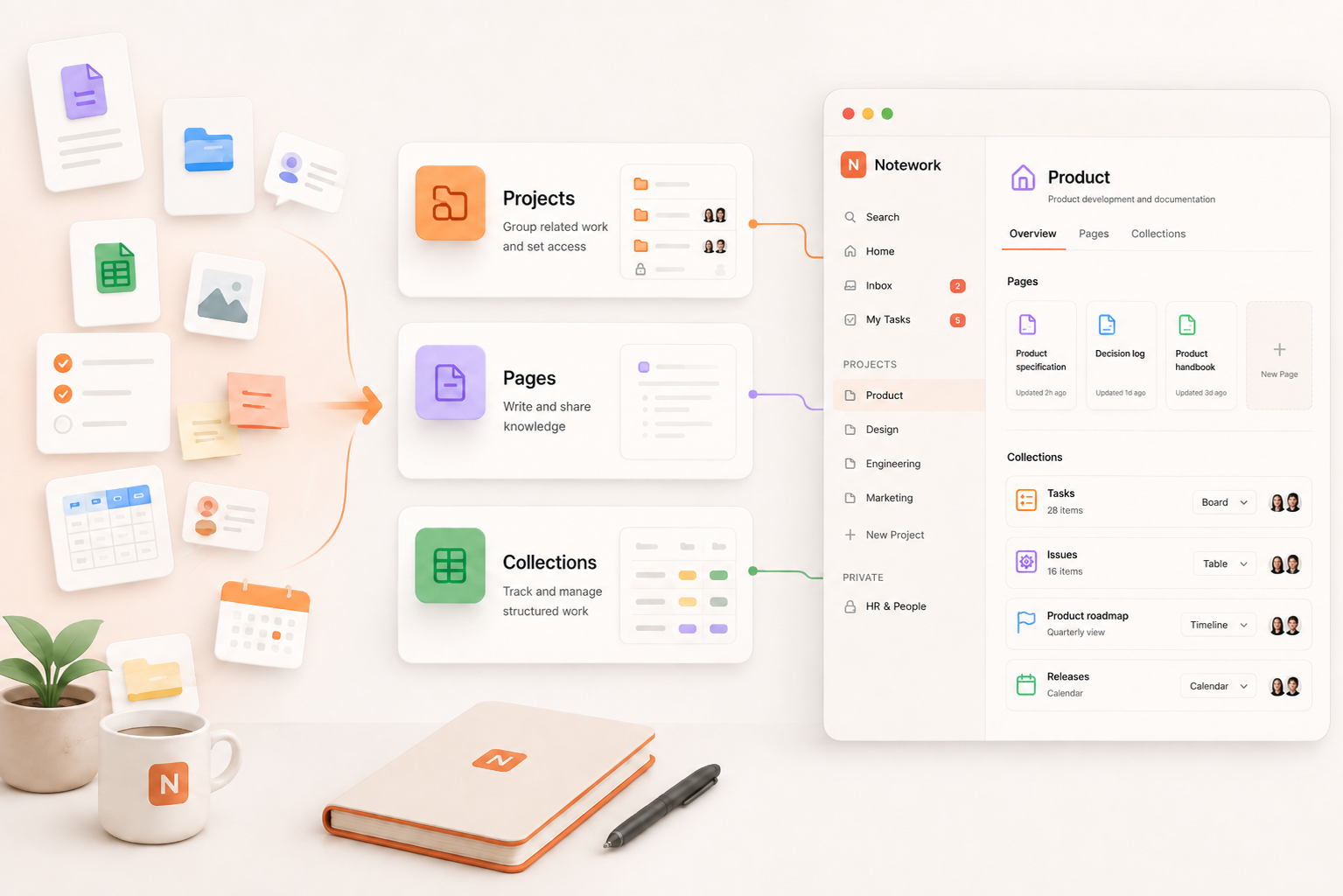
Notework takes a more structured approach by separating the workspace into three main building blocks: Pages, Projects, and Collections.
Pages are for written knowledge
Pages are designed for information such as specs, notes, policies, handbooks, product documentation, decisions, and other reference material.
This gives written knowledge a recognizable format instead of requiring teams to decide whether every document should also behave like a database or project tracker.
Projects group related work
Projects provide a home for work related to a product, team, client, initiative, or workstream.
A Project can be open to the workspace or private to selected people. Notework also provides access controls at the workspace and Page level, so teams can separate broadly shared information from work that needs more limited access.
Collections are for structured work
Collections are designed for things that need to be tracked rather than simply read.
They can be used for tasks, issues, roadmaps, calendars, assets, and other operational work. Collection items can include properties such as status, assignee, due date, and priority.
The same Collection can be viewed in different ways, including table, board, list, calendar, timeline, and gallery views. That lets teams change how they look at the work without creating a separate copy of the underlying information.
The important distinction is not the feature list itself. It is that documents, project context, and structured work have different roles while still living in the same workspace.
Moving an existing workspace into a clearer structure
Reorganizing does not necessarily mean starting over.
If you are changing tools, first decide what is worth bringing with you. Old workspaces often contain abandoned pages, duplicate information, and structures that no longer reflect how the team operates.
Migration can be a useful moment to simplify.
Notework supports imports from Notion, CSV, and Markdown. When importing from Notion, nested pages can retain their hierarchy and databases can be mapped to Collections with their properties. The importer also provides information about what was and was not brought across.
Regardless of the tool you choose, it is worth reviewing the imported structure instead of automatically recreating every part of the old workspace.
A good workspace should be understandable without a map
The strongest sign of an organized workspace is not that everything follows a complicated system.
It is that people can usually predict where work belongs.
They know where to write a specification, where to track an issue, where to look for a project, and where to find information later.
That kind of predictability becomes more valuable as the workspace grows. Instead of repeatedly cleaning up clutter, the team has a structure that makes new work easier to place from the beginning.
FAQs
What is the best way to organize a team workspace?
Start with the recurring types of work your team already creates. Give written knowledge, projects, and trackable work predictable places to live, and avoid adding organizational layers unless they solve a real navigation problem.
How much structure does a team workspace need?
Enough that people can understand where work belongs without memorizing complicated rules. Some teams prefer highly flexible systems, while others work better with more predefined structure. The right balance depends on how much organization your team wants to design and maintain itself.
How does Notework organize a workspace?
Notework uses three main building blocks. Pages hold written knowledge, Projects group related work and help manage access, and Collections handle structured work such as tasks, issues, roadmaps, and calendars.
Can you migrate from Notion to Notework?
Yes. Notework supports imports from Notion, CSV, and Markdown. Its Notion importer can preserve nested page hierarchy and map databases to Collections. It also reports what was and was not imported so you can review the result.
Is Notework designed for large organizations?
Notework's current public positioning focuses on small teams, including product teams, engineering teams, and startups that want a more structured shared workspace.