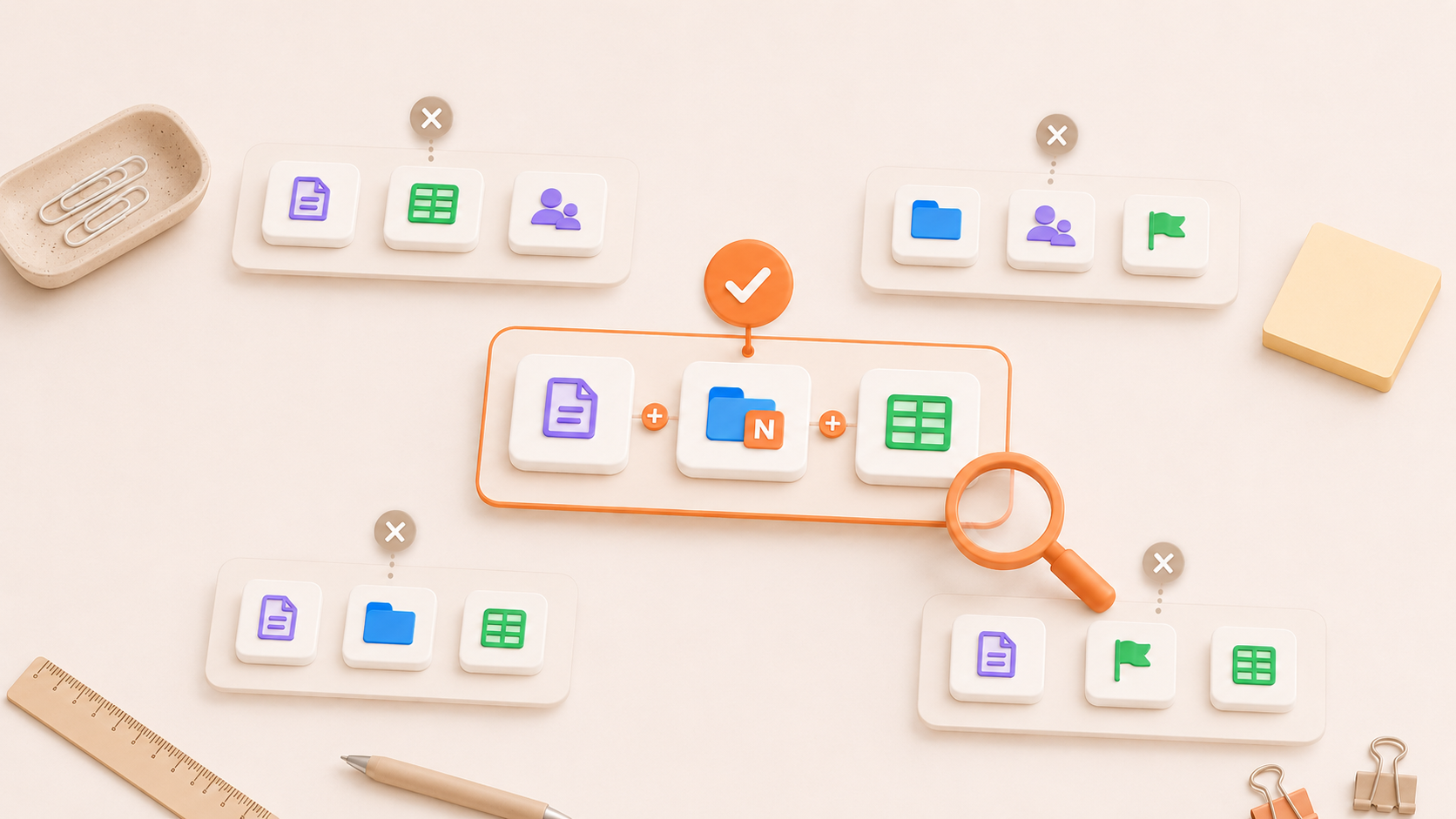
Choosing workspace software often starts with a feature list.
Does it have docs? Tasks? Boards? Search? Permissions? Mobile apps?
Those questions matter, but two tools can offer many of the same features while organizing work in very different ways.
A better starting point is to look at how your team actually works. What kinds of information do you manage? Which pieces need to stay connected? How much of the workspace do you want to configure yourselves? And what happens once the workspace contains hundreds of documents, tasks, and projects instead of a handful?
The right workspace is less about having the longest feature list and more about whether its underlying model fits the work your team needs to organize.
Start with the work your team actually does
Before comparing products, make a simple inventory of the work your team manages regularly.
That might include:
Specifications and documentation
Meeting notes
Research
Decisions
Projects and initiatives
Tasks and issues
Roadmaps
Reference material
Files and attachments
Different teams will put different weight on each one.
A software team might spend much of its time moving between specifications and issues. Another team may rely more heavily on policies, research, meeting notes, and recurring operational tasks.
The important question is not whether a tool technically supports each item.
Ask how central each type of work is to your team and how often people need to move between them.
If documentation, decisions, tasks, and project planning are closely related in your workflow, the way the workspace connects them matters as much as the individual features.
Decide whether documentation and tracked work should live together
Documentation and tracked work serve different purposes.
A specification explains what the team intends to build. A decision record explains why a particular approach was chosen. A task or issue tracks something that needs to happen.
Some teams keep these in specialized tools. Others prefer them within the same workspace.
Neither approach is automatically better.
Separate tools can make sense when a team depends on specialized functionality. But separation also means people need a clear way to move between the work and the context behind it.
Ask:
How often does someone working on a task need to read the related documentation?
Does documentation regularly create tasks or follow-up work?
Do people copy the same context between different tools?
Is it obvious which system contains which information?
Are the benefits of the specialized tools important enough to justify keeping them separate?
If documentation and tracked work are closely related, a workspace that keeps them within the same project environment may be worth considering.
The goal isn't to turn documents into tasks or tasks into documents. It's to keep both accessible without losing the distinction between them.
Decide how much structure your team wants
Workspace tools differ significantly in how much organization they define for you.
Some are highly flexible. Teams can decide how projects should be represented, where documentation belongs, how tasks are organized, which properties to use, and how the overall hierarchy should work.
Others provide more predefined building blocks.
Flexibility can be useful when workflows are unusual or change frequently. The tradeoff is that the team has to make and maintain more organizational decisions itself.
More structure narrows some of those choices. That can make the workspace more predictable, but it also means working within a clearer model.
Ask your team:
Do we want to design our own workspace system?
Who will maintain that system as it grows?
Do different teams need substantially different workflows?
Would it help if similar projects were organized in similar ways?
How much setup should be necessary before a new project is usable?
The useful question is not whether flexibility or structure is better.
It is how much organizational design your team wants the tool to handle and how much you want to handle yourselves.
Look at how the tool represents a project
A task board alone doesn't tell you everything about a project.
When evaluating a workspace, open a project and ask whether you can understand the broader context.
Can you tell:
What the project is about?
Which documentation belongs to it?
What work is currently active?
Where decisions and reference material live?
Who has access?
Where you would add something new?
A project structure should help people understand what belongs together.
This becomes especially important when the team handles both written knowledge and tracked work. A specification, research document, issue list, roadmap, and meeting notes may all relate to the same initiative even though they serve different purposes.
You shouldn't need a separate map to understand those relationships.
Test navigation and search with realistic information
An empty workspace is easy to navigate.
The more useful test is what happens once the workspace starts looking like your actual environment.
During an evaluation, add or import enough realistic content to test both navigation and search.
Try tasks such as:
Find a document when you know its title.
Find a document when you only remember what it was about.
Browse a project you didn't create.
Find an old decision.
Find the work currently assigned to you.
Move from a task to the surrounding project context.
Locate information from a completed project.
Navigation and search solve different problems.
Navigation helps people understand what exists and how things relate. Search helps retrieve something more directly.
A useful workspace should give you reasonable ways to do both as the amount of information grows.
Evaluate permissions using real scenarios
Don't stop at checking whether a product has a permissions feature.
Think about what access actually looks like for your team.
For example:
Which information should everyone in the workspace see?
Which projects should be limited to a smaller group?
Do individual documents sometimes need different access?
Who should be able to edit versus view particular work?
How often do those permissions need to change?
A team might have broadly shared product documentation alongside private people, finance, or client work.
Test those situations during the evaluation.
The goal is to understand whether the permissions model matches the way your team needs to share information, rather than assuming every access-control system works the same way.
Check migration before committing
If your team already has an established workspace, switching is partly a migration problem.
Before choosing a new tool, find out exactly what can be brought across.
Ask:
Which import formats are supported?
What happens to nested content?
How is structured data handled?
Can you decide where imported information should go?
Can you review what transferred and what didn't?
How much cleanup will be needed afterward?
Avoid assuming that importing from another platform will reproduce the old workspace exactly.
A migration can also be an opportunity to reconsider the existing structure rather than automatically recreating every folder, database, and convention.
Check how you can get your information back out
Importing matters when you arrive. Exporting matters if you eventually leave or need to use the information somewhere else.
Look at what can be exported and in which formats.
The answers may differ for documents, structured data, and entire projects.
For example, one tool may export written documents cleanly but provide limited options for structured task data. Another may make it easy to export lists but not preserve project hierarchy.
The point isn't to find a platform with every possible format.
It is to understand what happens to your information before you commit significant work to the system.
Test a real project, not just the demo
Product demos are useful for understanding what a tool can do.
They are less useful for showing how the tool fits your team's habits.
If a trial is available, use one representative project instead of rebuilding the entire workspace immediately.
Add:
Real documentation
A few active tasks or issues
Decisions or meeting notes
Relevant files
Several team members
Then use it for normal work.
Pay attention to the questions that come up:
Do people know where to create something?
Can they find information they didn't create themselves?
Does the project structure make sense without a long explanation?
Are important workflows missing?
Which things require repeated setup?
Are people trying to work around the model rather than with it?
Testing real work can expose things a feature checklist won't.
A feature only matters if it fits into the way the team actually uses the workspace.
How Notework approaches a structured team workspace
Notework is one example of a workspace that defines clearer roles for different types of work.
It is currently positioned as a shared workspace for small teams and uses three main building blocks.
Projects give related work a home. A Project can group work around a product, team, client, initiative, or other workstream.
Pages hold written knowledge such as specifications, meeting notes, product documentation, handbooks, and decisions.
Collections handle structured work such as tasks, issues, roadmaps, calendars, and other operational work.
That model makes some organizational decisions in advance while still leaving teams choices within those categories.
For example, Collections can be viewed as tables, boards, lists, calendars, timelines, or galleries depending on how the team wants to look at the work.
Notework also supports open and private Projects and additional access controls for sharing work with the appropriate people.
Search works across written and structured content, including Pages, Collection entries, comments, and attachment names, so teams can both navigate through Projects and search directly when they know what they are looking for.
For teams moving from an existing system, Notework supports imports from Notion, CSV, and Markdown. Its Notion importer can preserve nested Page hierarchy, map databases to Collections, and report what was and was not imported.
Export options also differ by type of work. Pages can be exported as Markdown, HTML, or PDF, Collections as CSV, and an entire Project as a ZIP.
This model won't suit every team. A team that wants to design every part of its workspace from scratch may prefer a more configurable system. A team that depends on a highly specialized issue tracker may still want separate software for that work.
Notework is most relevant when a small team wants documentation, projects, and tracked work in the same workspace while giving each one a clearer role.
Choose the model, not just the feature list
Most workspace products can show you an impressive collection of features.
The harder question is whether those features fit together in a way your team understands.
Start with the work you actually manage. Decide which pieces need to stay close. Think about how much structure you want the tool to provide. Test navigation, permissions, migration, and exports with realistic scenarios.
Then put a real project into the workspace and see whether the model holds up.
The right choice is the one that supports the kinds of work your team needs to organize without requiring you to constantly work around the system.
FAQs
What should you look for in team workspace software?
Start with the types of work your team manages, such as documentation, projects, tasks, issues, roadmaps, and decisions.
Then evaluate how the tool organizes those things, how much structure it provides, how navigation and search work, what permissions are available, and how information can be imported and exported.
How do you choose between project management and workspace software?
It depends on what your team needs to manage.
If most of the work revolves around tasks, schedules, dependencies, and delivery, a dedicated project management tool may be enough.
If people regularly need to work across documentation, decisions, projects, and tracked work, a broader team workspace may fit better.
Should documentation and tasks be in the same workspace?
They can be, especially when people frequently need to move between tracked work and the documentation behind it.
They should still retain different roles. Documents are useful for context and explanation, while tasks and issues benefit from structured properties such as status, owner, priority, and due date.
How much flexibility should a team workspace provide?
There isn't one correct amount.
Highly flexible tools leave more organizational decisions to the team. More structured tools make some of those decisions in advance.
The right balance depends on how much customization your team needs and how much of the workspace system it wants to design and maintain itself.
How should you test a new workspace before switching?
Use a representative real project during the trial.
Add actual documentation, tasks, decisions, files, and a few team members. Test common actions such as finding information, creating new work, changing permissions, and moving between project documentation and tracked work.
What should you check before migrating to a new workspace?
Check which import formats are supported, how nested and structured data will be handled, whether you can review the imported result, and what cleanup may be necessary.
Also check export options before committing so you understand how your information can be retrieved later.
What types of teams is Notework designed for?
Notework's current public positioning focuses on small teams that want documentation, projects, and structured work within the same workspace.
Its model separates that work into Projects, Pages, and Collections so each type has a clearer role.