Project Overview: What to Include So It Stays Useful
Atualizado em Sep 17, 202610 min de leitura
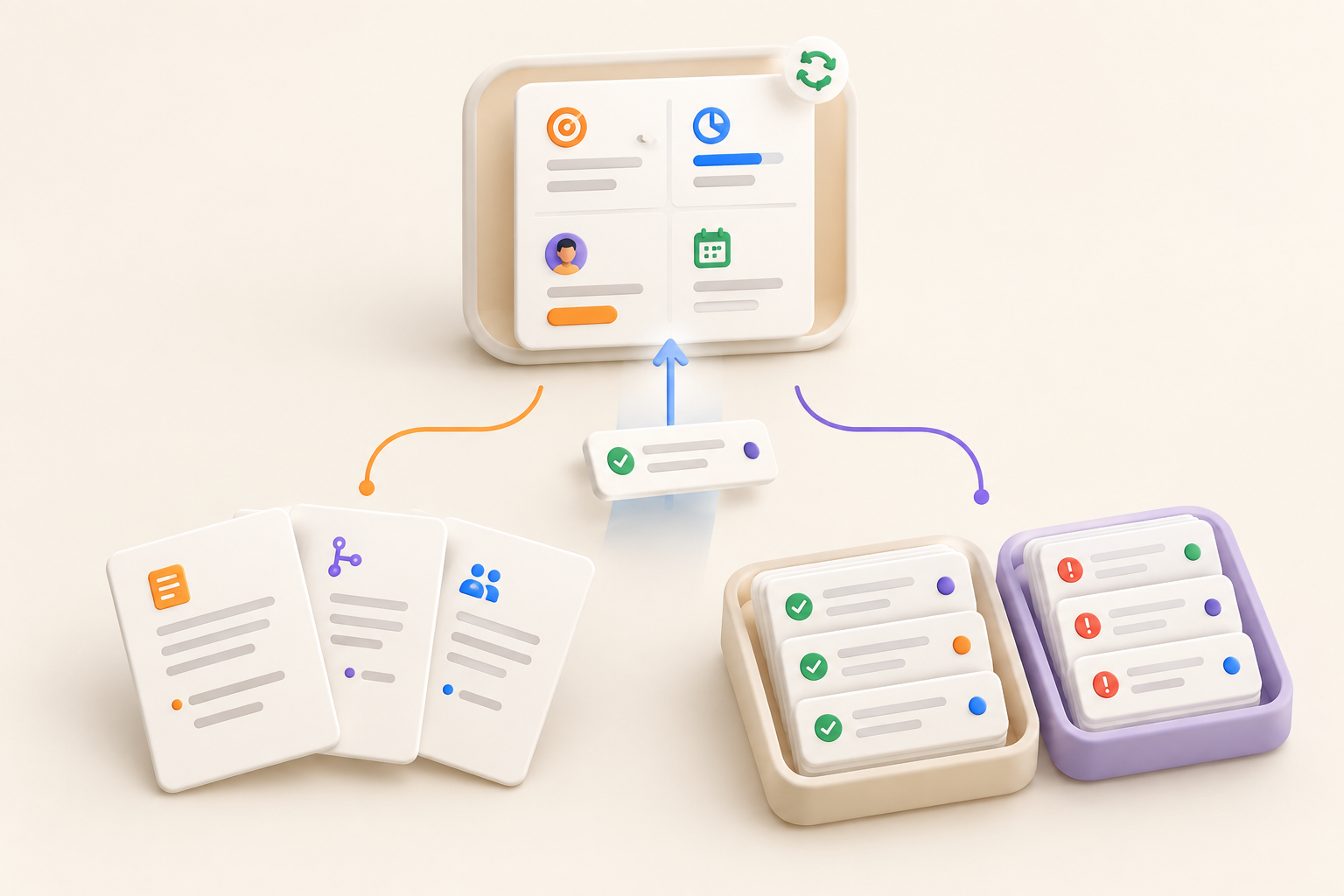
A project overview should help someone enter a project without scheduling a guided tour. In under a minute, a new or returning teammate should understand the project’s purpose, current state, ownership, next milestone, and location of the live work.
That takes more than filling out a template at kickoff. Dates move. Decisions change. Risks appear. The overview needs to stay current as the project moves, so treat it as the maintained front door to the work rather than a framed picture of what everyone expected six months ago.
A project overview is a concise, scannable reference for the project’s purpose, scope, progress, and essential information. It gives people enough context to act, then sends them to the detailed material they need.
“One page” is a useful constraint, but scan time matters more than a precise word count. If the page contains the full meeting history, every completed milestone, 19 stakeholder names, and a collection of expired links, it has become an archive.
The terms “project overview” and “project summary” overlap in common use. A summary may be written as a snapshot at a particular moment, while an overview can serve as an ongoing reference. Teams use these labels differently. Agree on what the page must do instead of spending an afternoon settling the taxonomy.
A project brief explains the problem, rationale, requirements, and constraints. A project plan covers delivery details, schedules, and milestones. A status report records progress at a particular point in time. The overview connects these materials and tells readers which source is current.
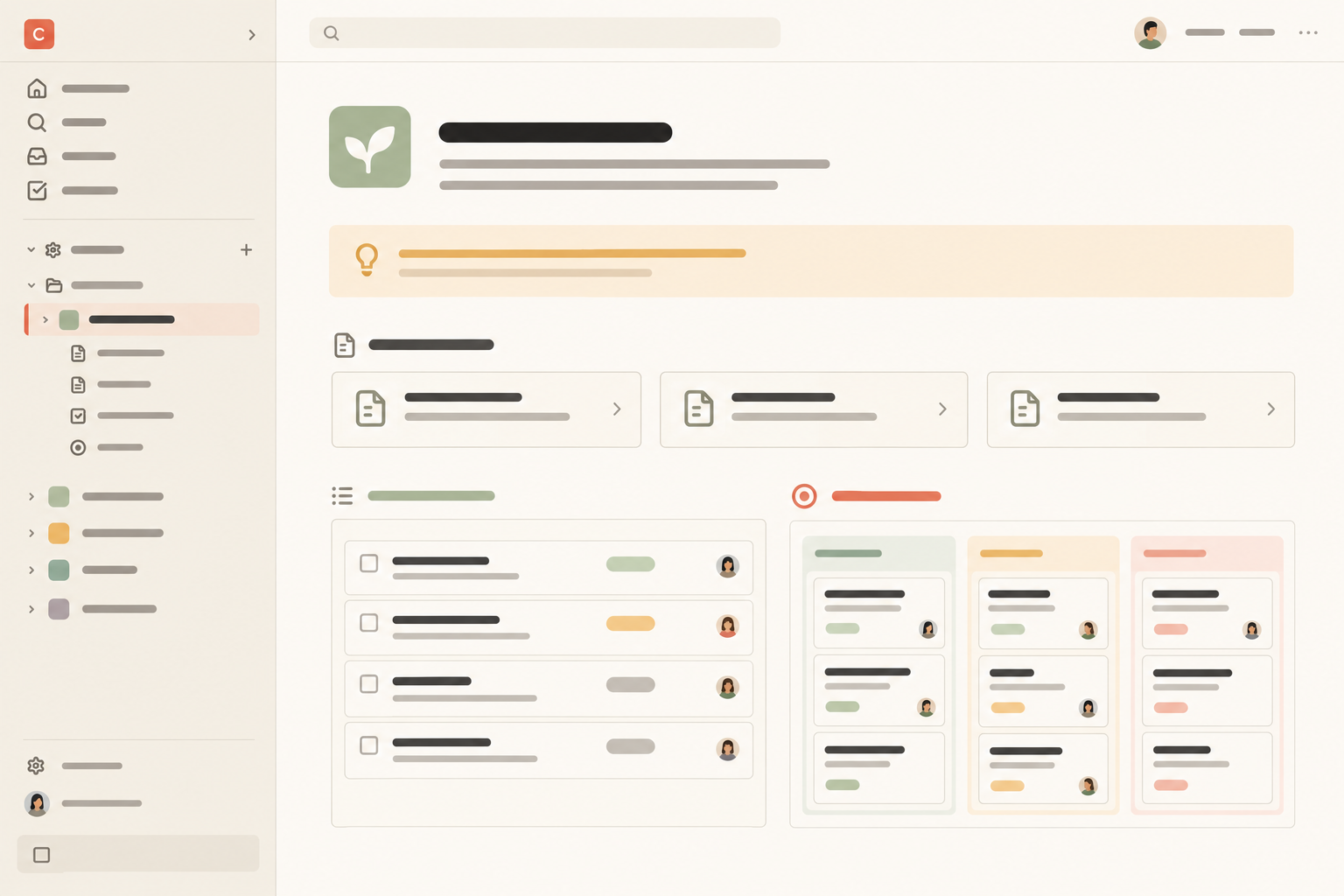
The overview needs a stable location. For a small team, that usually means one project home that points to the pages and collections where the work actually happens.
Notework makes this structure explicit: a workspace contains projects, every page and collection belongs to a project, and each project has a home. That gives the overview a natural place to live instead of leaving it as a page someone has to hunt for.
Use the project home to answer the orientation questions, then link to:
The home should not duplicate these materials. It should make their relationship obvious. If someone can see the purpose, current status, owner, next move, and the right link from one place, the structure is doing its job.
A good overview answers four core questions. Scope, risks, decisions, and links provide the detail needed to answer them honestly.
Start with the project name and a one- or two-sentence purpose. Name the problem being addressed and the intended outcome. If “done” could mean several things, define it briefly.
Replace the existing onboarding emails with a shorter sequence that reflects the current product. The project is complete when the approved sequence is configured, reviewed, and ready to send.
“Improve onboarding” leaves the reader guessing about the actual work.
In a Notework project, put this explanation on a Page. Pages are suited to narrative context such as briefs, plans, decisions, and notes. The overview can link to those pages without copying them into a giant project summary.
A short boundary prevents reasonable people from making incompatible assumptions:
Keep detailed requirements in the brief or plan. The overview only needs the boundary that helps someone make sense of the current work.
Name one project owner. A department cannot answer a question, make a judgment call, or notice that the overview is stale.
Also identify the person responsible for the immediate next move. That may be the project owner, but it does not have to be. Add contributors, stakeholders, and the decision-maker when knowing those roles helps someone act.
“Marketing owns this” is fog. “Priya owns the project; Anton is reviewing the final copy” is useful.
Keep ownership visible on the project home. When the owner changes, update the overview there first. Otherwise, the old owner remains attached to the work long after everyone has quietly stopped asking them for answers.
Write a plain-language status covering the current phase, what changed recently, and what needs attention. A label such as “in progress” can help someone scan, but it cannot carry the explanation alone.
Status: Copy review is in progress. Product approved the first four messages on Tuesday. The final two are waiting on legal review.
A returning teammate now has useful information without reconstructing the week from chat messages.
Show the next milestone, its date when known, and the immediate next move or current priority. Keep the full schedule in the project plan.
Next milestone: Final copy approved by May 14. Anton will send the revised cancellation message for legal review today.
If a date is uncertain, say so. A date nobody believes is less useful than “to be confirmed.”
Include active risks, blockers, dependencies, and decisions that affect the current direction. Skip risks that are merely imaginable. A meteor could hit the office, but it probably does not belong on the launch overview.
Keep the full history in a decision log or risk list. The overview needs only the items someone must understand now. For a deeper approach to decision records, read how to document decisions so your team can find them later.
Add a small set of canonical links. Common destinations include:
Each label should point to the accepted source. Do not offer “Launch plan,” “New launch plan,” and “Launch plan FINAL v3” and expect the reader to choose wisely.
In Notework, this is where the Page and Collection distinction helps. Use a Page for the brief, decisions, and notes. Use a Collection for repeatable work such as tasks or issues. Each collection item remains a full entry page, so the actionable work can retain its context instead of becoming an unexplained line in a list.
Keep orientation on the project home or overview page:
Link detailed requirements, full schedules, task and issue lists, meeting history, decision history, and working files. This keeps the overview readable while preserving access to the evidence and execution underneath it.
For the broader structure around those materials, see How to Organize Project Documentation. Written context and actionable work should also remain easy to reach from each other, as explained in Why Docs and Tasks Should Live in the Same Workspace.
Remove obsolete destinations and replace superseded documents. A project overview is a route map, not an inventory of everything anyone has created.
The project owner should maintain the overview or explicitly assign that responsibility. They do not need to copy every task update onto the page. Their job is to keep the orientation accurate.
Update it when:
These events are more reliable triggers than a ceremonial weekly refresh. In Notework, the project home gives the owner a known place to make those updates, while linked task and issue collections retain the underlying work.
When the project closes, replace the active status with the outcome, closure date, and links to anything worth preserving.
This fictional example is compact enough to scan while still pointing to live work.
Project: Team plan launch
Purpose: Prepare and release the new Team plan. The project is complete when the pricing page, announcement, support material, and launch communications are approved and published.
Scope: Pricing-page copy, announcement email, support updates, and launch coordination. Billing-system development is tracked separately.
Owner: Maya Chen
Decision-maker: Luis Ortega
Current next move: Devon will deliver the revised pricing-page copy by Thursday.Status: Final review. Support material was approved on Monday. Pricing-page copy needs one revision before legal review.
Next milestone: Launch approval meeting, May 14.
Active risk: Legal review may move the publication date if the revised copy arrives after Thursday.
Key decision: Existing customers remain on their current plan at launch.
Live material: Launch brief · Project plan · Launch tasks · Decision log · Approved assets
Last updated: May 8 by Maya
In a Notework project, the overview above would sit on the project home or a clearly linked Page. The brief and decision log would remain Pages. Launch tasks and issues would live in the relevant Collections, with the overview linking to the view the team uses now.
The full schedule, old meeting notes, and approval history stay available without blocking the reader’s path into the work.
The project-home model works because each type of information has somewhere sensible to go:
Notework includes Task Tracker and Issue Tracker collection presets. A team can link the relevant task or issue view from the overview without copying a second list into the page. Filters, sorts, grouping, and visible properties can be saved on each view, so the linked work can match the way the team is currently operating.
This is the practical reason to keep the overview close to the project’s pages and collections. The overview tells people where they are and what needs attention. The linked work shows what is being done.
Copy this structure, then delete anything your project does not need. Empty template fields are clutter wearing a name badge.
# [Project name]

## Purpose
[What problem are we addressing, and why does this project exist?]

## Intended outcome
[What should be true when the project is complete?]

## Scope
- In scope: [Work included]
- Out of scope: [Likely points of confusion]

## Ownership
- Project owner: [Name]
- Current next move: [Name and action]
- Contributors or stakeholders: [Names, only if useful]
- Decision-maker: [Name, if different from owner]

## Current status
[Current phase, what changed recently, and what needs attention]

## Next milestone
- Milestone: [Name]
- Date: [Date or “to be confirmed”]
- Current priority: [Immediate focus]

## Active risks or blockers
- [Only items affecting the current direction]

## Key decisions
- [Decision someone needs to understand now]

## Live material
- Project brief: [Canonical link]
- Project plan: [Canonical link]
- Tasks or issues: [Canonical link]
- Decisions and notes: [Canonical link]
- Working files: [Canonical link]

Last updated: [Date] by [Owner]
If you use Notework, place this overview on the project home, keep narrative material in Pages, and link to the relevant task or issue Collection. Start with the smallest structure that helps someone enter the work. Then update it when reality changes.
You can try Notework with a 14-day workspace trial with Team-level access during the trial. The product is built around the same Workspace to Project to Page or Collection structure described here.
See also How to Organize Project Documentation.
See also Why Docs and Tasks Should Live in the Same Workspace.
See also how to document decisions so your team can find them later.
See also how to organize a team workspace that stays organized.